Tracing Camera

iPhone / iPad · iOS 26.0+

Your photo on the paper.Trace it by hand.

See your reference over the live camera view of your paper, and copy it with a pencil while watching the screen. No ads, no account, and your own photos are free to use.

Scan with your iPhone

Tracing Camera

When it helps

What it does

  1. 01

    Your own photos

    Bring in a reference from Photos, Files, the clipboard, a URL or the share sheet. Using your own photos is free, with no limits.

  2. 02

    A lock that holds still

    Once locked, a stray touch does not move the reference and the camera does not refocus. Only a long press on the lock releases it.

  3. 03

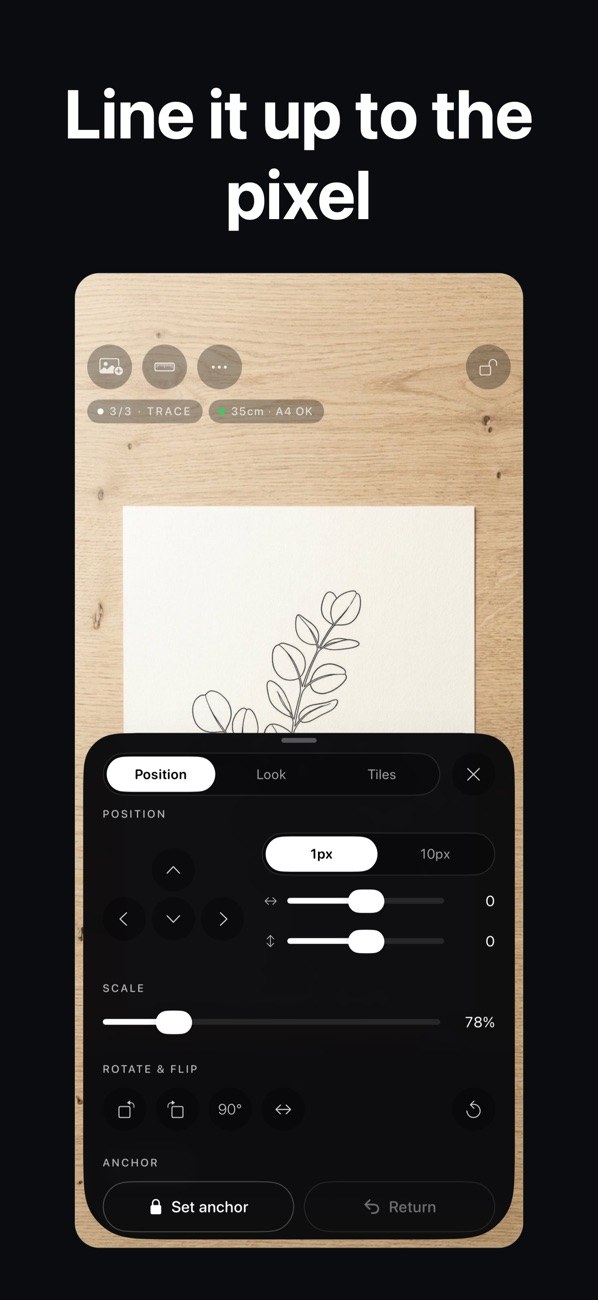
    Fine steps of 1 px and 1%

    Move the reference in 1 px steps and scale it in 1% steps. You can rotate and flip it too, with no pinching required.

  4. 04

    A guide to device height

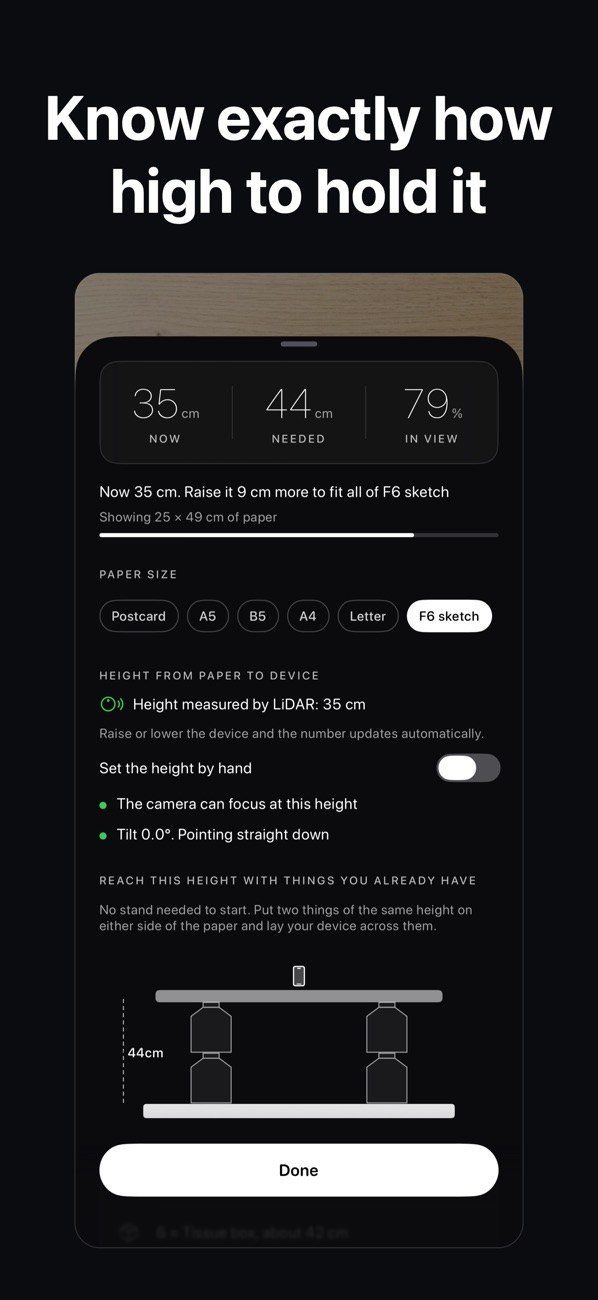
    Pick a paper size and the app tells you in centimeters how much higher to hold the device. It also shows how to reach that height with glasses, books and other things at home.

  5. 05

    Big paper, one tile at a time (Pro)

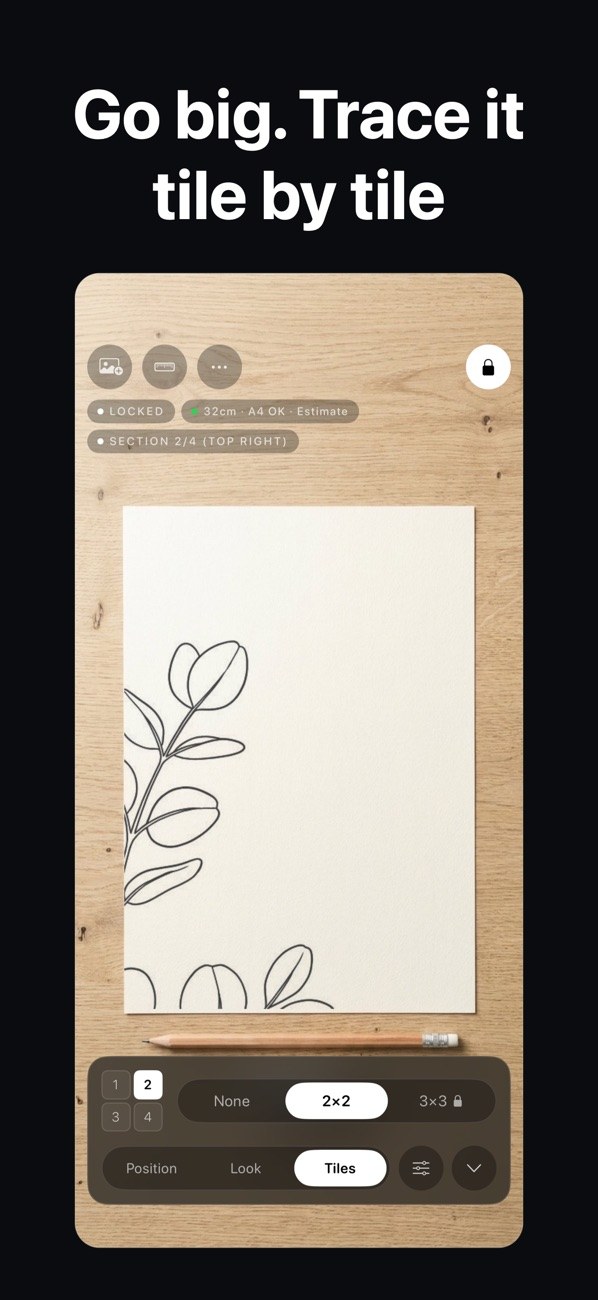
    Split the reference 2×2 or 3×3 and bring each section up to fill the screen, so you can draw on paper larger than A4.

  6. 06

    Outline-only view (Pro)

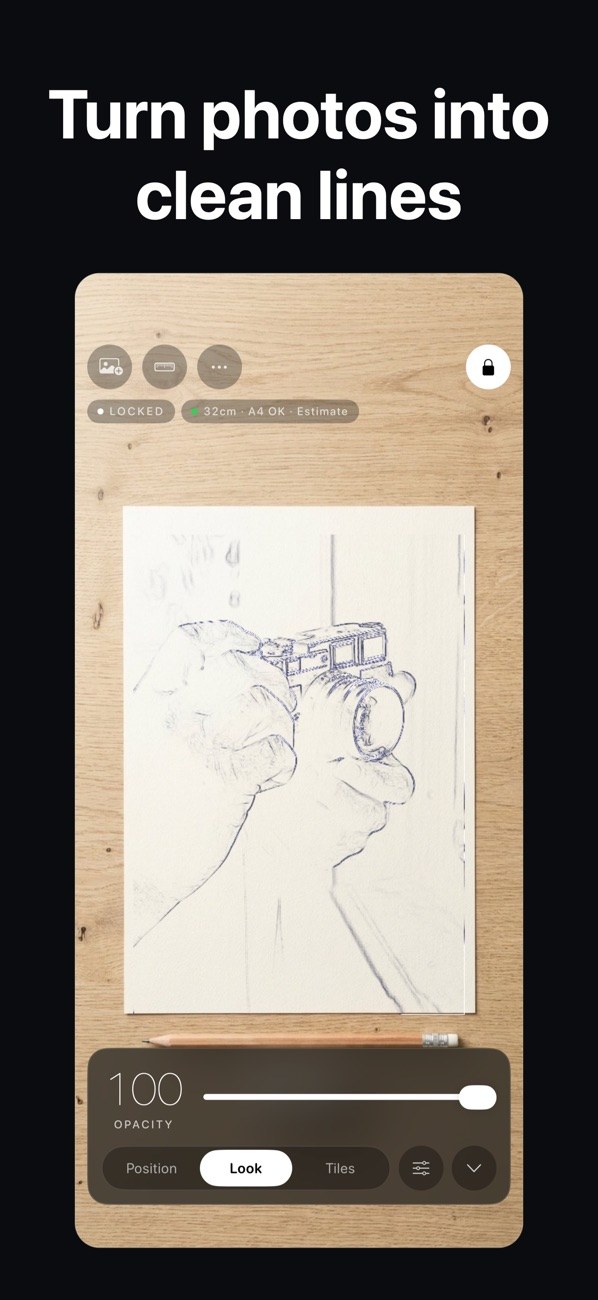
    Pull just the lines out of your reference. Choose between a smooth or a detailed outline.

In detail

Overlay a favorite photo on your paper
01

Overlay a favorite photo on your paper

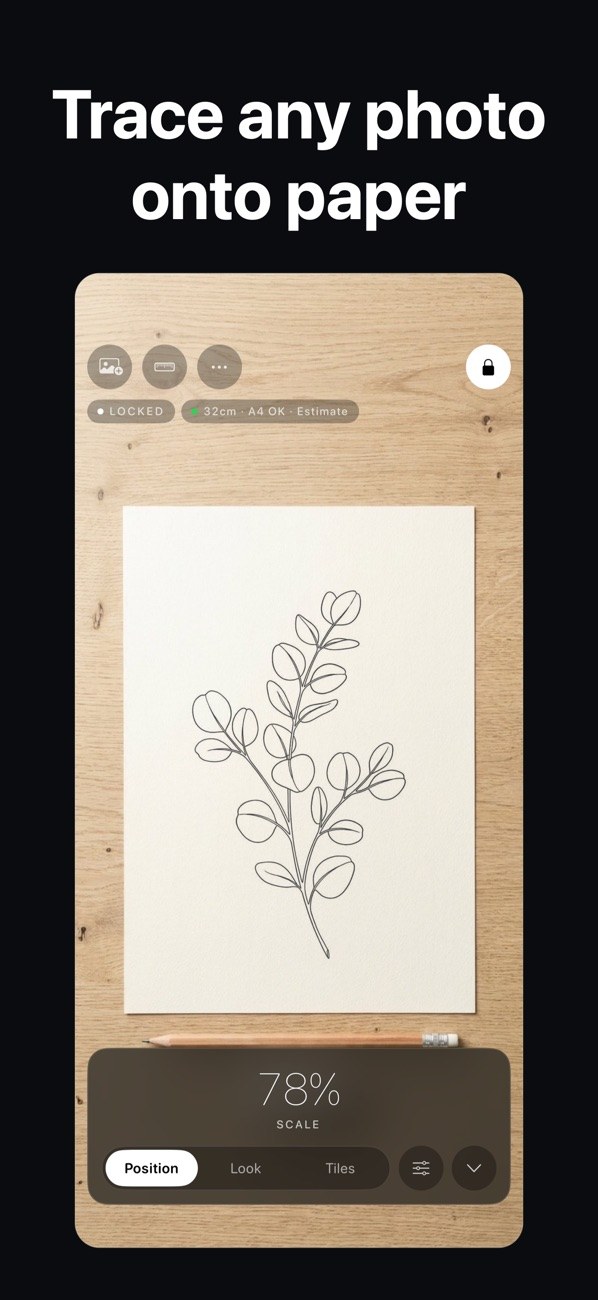
The reference appears semi-transparent over the live camera view of your paper. You watch the screen and draw with a pencil on the paper underneath. It does not project light onto the paper.

  • Adjust opacity, brightness and contrast
  • Invert light and dark
  • Tap to lock focus
Lock the position so nothing drifts
02

Lock the position so nothing drifts

Once the reference lines up, close the lock. While locked, a stray touch does not move the picture and the camera does not refocus. A long press on the lock releases it.

  • A LOCKED label shows on screen
  • Release with a long press
  • Free, with no limits
Show only the outlines
03

Show only the outlines

Under Look, the app can pull just the lines out of your reference so they are easier to follow. You can choose between a smooth or a detailed outline.

  • Outline-only view is a Pro feature
  • Smooth or detailed
  • Strength set with a slider
Trace big paper one section at a time
04

Trace big paper one section at a time

Under Tiles, split the reference 2×2 or 3×3 and bring each section up to fill the screen. Position and scale stay the same when you move to the next section.

  • 2×2 and 3×3 (tiles are Pro)
  • The current section is shown on screen
  • Move between sections while locked
See how high to hold the device
05

See how high to hold the device

Pick a paper size, such as postcard, A5, B5, A4 or Letter, and the app shows the current height, the height needed and how much of the sheet is in view. Devices with LiDAR measure the height; others let you set it by hand.

  • Plain-language guidance such as "Raise it 9 cm more"
  • A diagram of household items that reach the height
  • Device tilt is shown too
Fine-tune position and scale
06

Fine-tune position and scale

Move the reference in 1 px or 10 px steps and scale it in 1% steps. You can also rotate and flip it, with no pinching required.

  • Position, scale, rotate and flip
  • Remember an anchor point and snap back later (Pro)
  • Reset the position to the start

How it works

  1. 1
    Choose a reference

    Choose a reference

    Pick one picture from Photos, Files, the clipboard, a URL, or the share sheet.

  2. 2
    Place your device

    Place your device

    Hold the device over the paper and raise it to the height the app suggests. With no stand, a diagram shows how to use glasses, books or similar items.

  3. 3
    Match position and size, then lock

    Match position and size, then lock

    Line up the reference with your paper using position and scale, then close the lock.

  4. 4
    Trace while watching the screen

    Trace while watching the screen

    Watch the paper and reference on screen and move your pencil on the paper. For larger sheets, use Tiles (Pro).

Screens

The reference locked over your paper
Only the lines from a photo
Split 2×2, one section at a time
How high to hold the device
Position, scale and rotation
Pro plans
Pro plans

FAQ

Does it project the picture onto the paper with light?

No. The reference is shown over the live camera view on your screen, and you draw on the paper underneath while watching it.

Do I have to pay to use my own photos?

No. Using your own photos, position lock and the setup guide are free with no limits.

Do I need printed markers?

No. You never need printed markers.

Can I draw on paper larger than A4?

Yes, with Pro tiles. The reference is split 2×2 or 3×3 and you trace one section at a time.

How many references can I save?

The free version saves one; delete it to swap in another. Pro has unlimited saved references that you can pick, reorder and delete.

Are there ads or an account?

There are no ads and no account.

Are camera images and references sent anywhere?

No. Camera images and references never leave your device, and there is no tracking. The camera permission screen also says the video is not recorded, saved or sent.

What are the Pro plans?

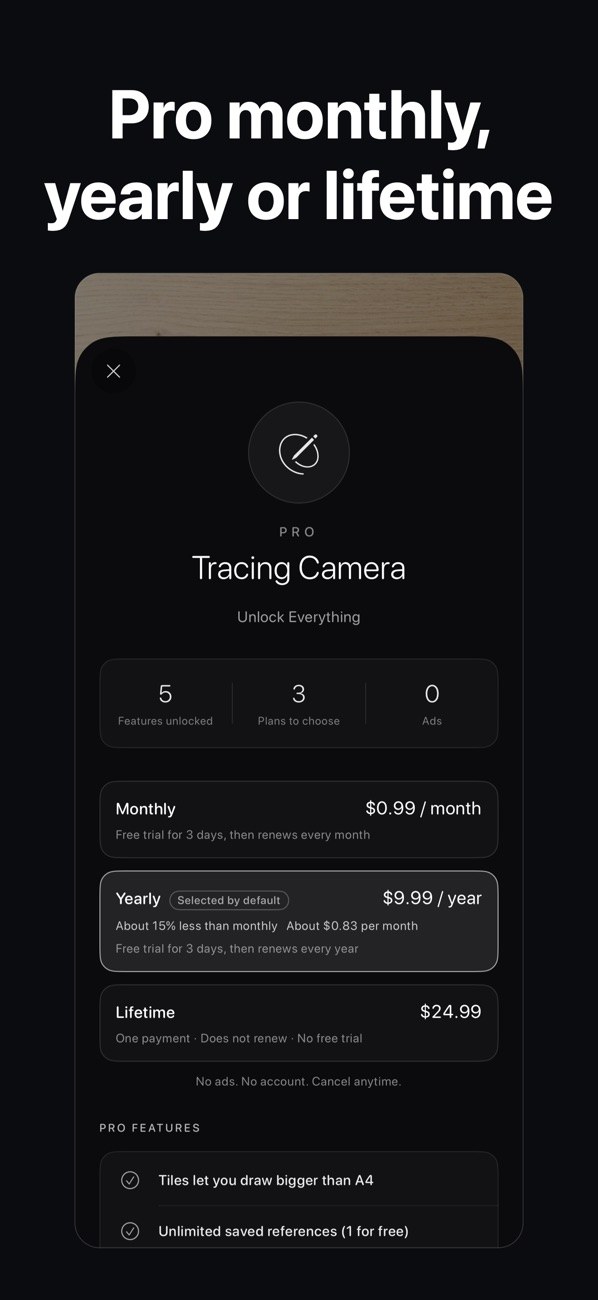
Monthly and Yearly plans include a 3-day free trial, available once per person. Lifetime is a one-time payment and has no trial. Your local price is shown before you buy, and Restore Purchases is in Settings.

Does it work on iPad?

It works on iPhone and iPad.

Put a favorite picture on paper.

Download on the App Store
Tracing CameraGet